The CIATTI MS is full of information from all CIATTI offices.
To be easier for you to manage it at a daily base, you should set your filters and columns, the way you need.
1. Filter by Office and Commodity Type
To simplify your view, it is important to customize your tables to only display the columns and offices that pertain to you. This can be achieved by utilizing the "Filter by Office" and "Filter by Commodity Type" options on various tables including Inventory, Buy Spec, Agreements, Item fulfillments, Invoices, Transactions, Sample room, Sample shipment request, Shipment tracking, and Sample tracking. By filtering out unnecessary data, you can streamline your workflow and access the information that is most relevant to your job function.

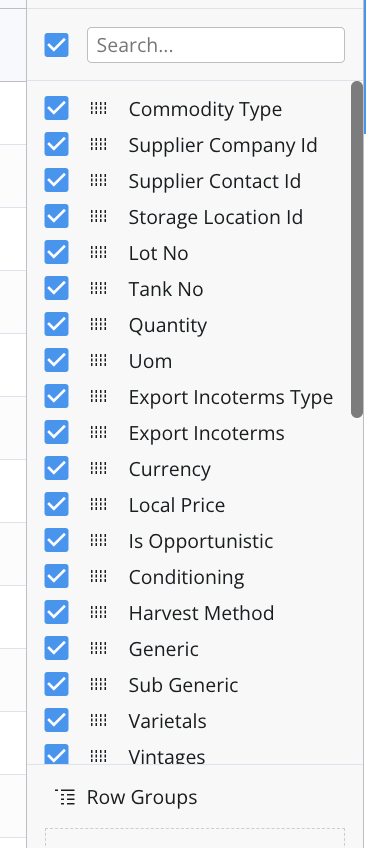
2. Select only the columns you need and reorder them
Each table can display all the information that is linked to this element. Most of the columns are not needed in your main screen. Select only the columns you need and reorder the way you want.
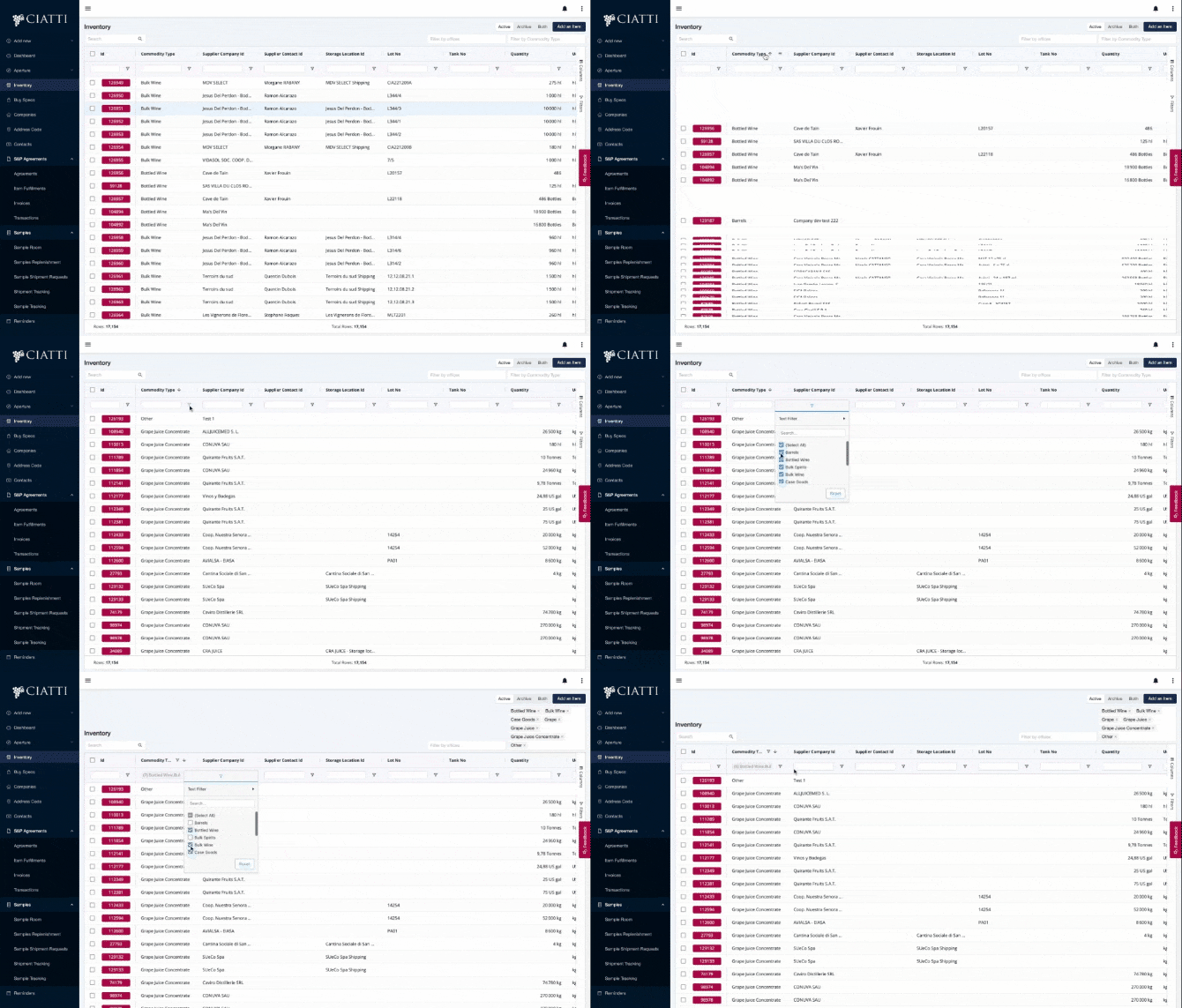
3. When you want to sort or filter, just use Filter / Sort (like in Excel)
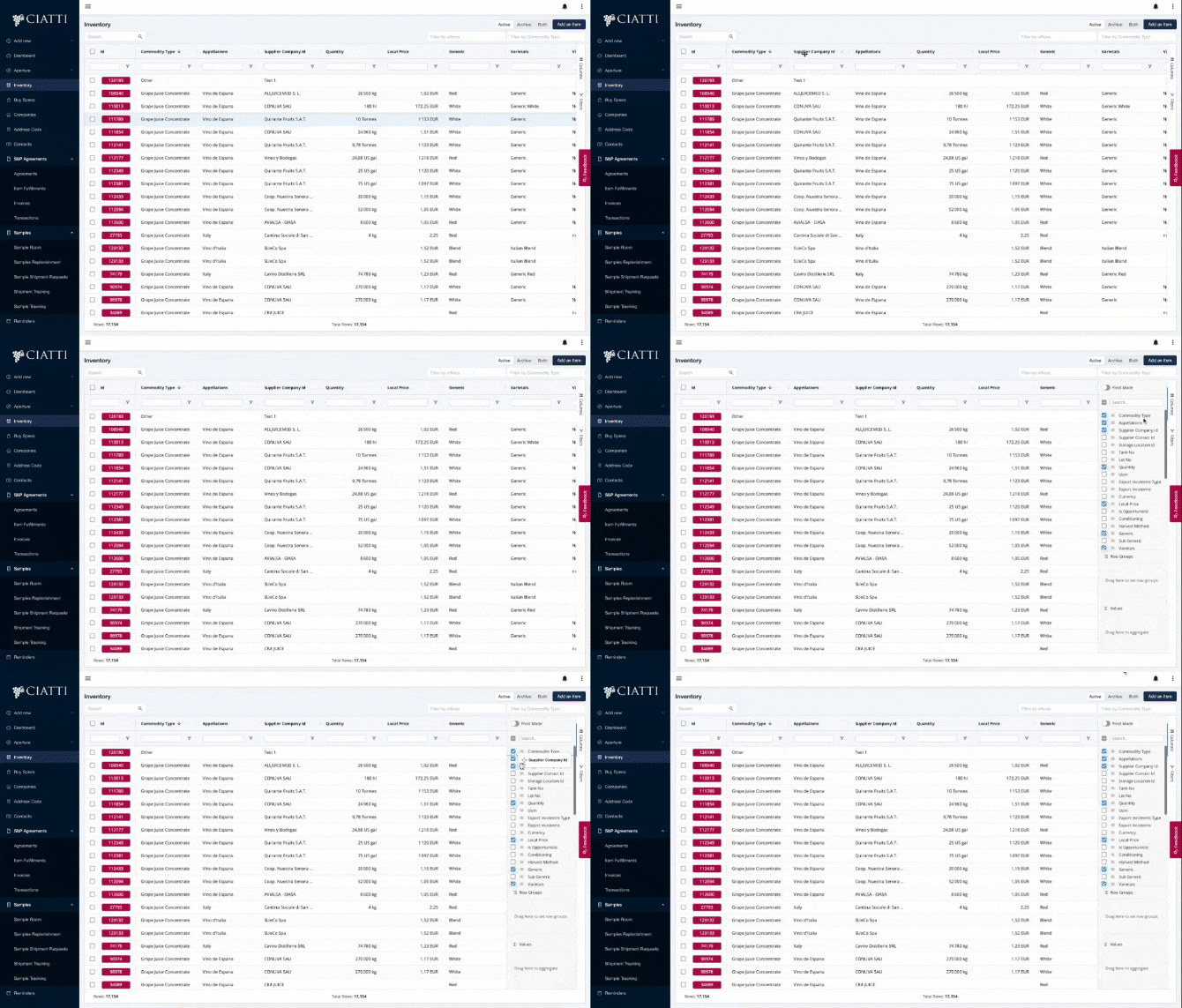
4. You change the order of the columns
? Directly in the table or in the Column tab on the right
Was this article helpful?
That’s Great!
Thank you for your feedback
Sorry! We couldn't be helpful
Thank you for your feedback
Feedback sent
We appreciate your effort and will try to fix the article