You can only set a Sample Shipment as a Broker if you have an Item matched with a Buy Spec!
At this step, you have already matched an Item with a Buy Spec ( see the article ‘How to match an Item with a Buy Spec?’).
Now that it is matched, you can send a Sample. Sample is inherited from an item and it is the physical bottles you send for tasting or approval to your customers.
In order to set a Sample Shipment you need to choose the menu on the left and press ‘Inventory’.
Item Table lists all the Items.
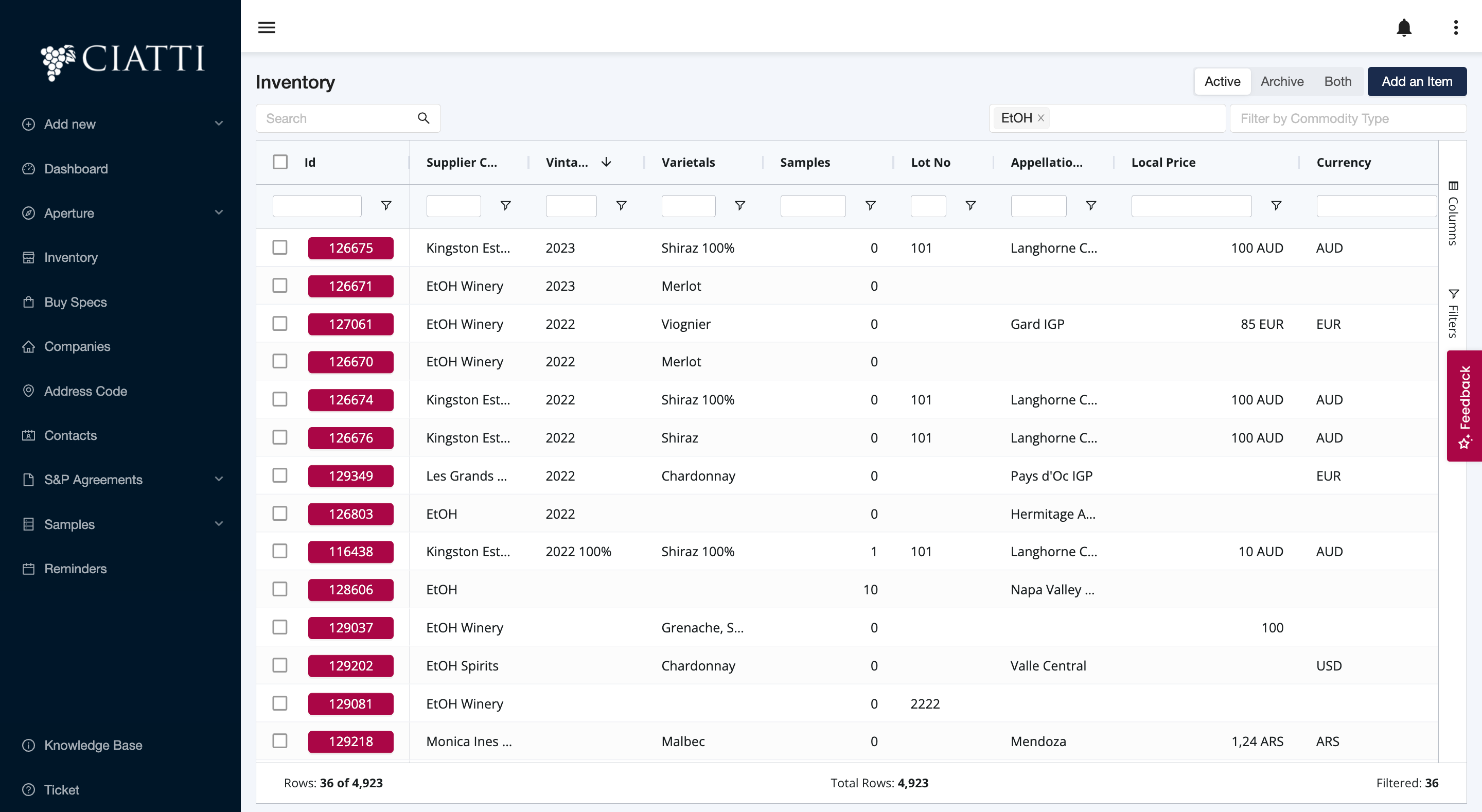
You have 2 options:
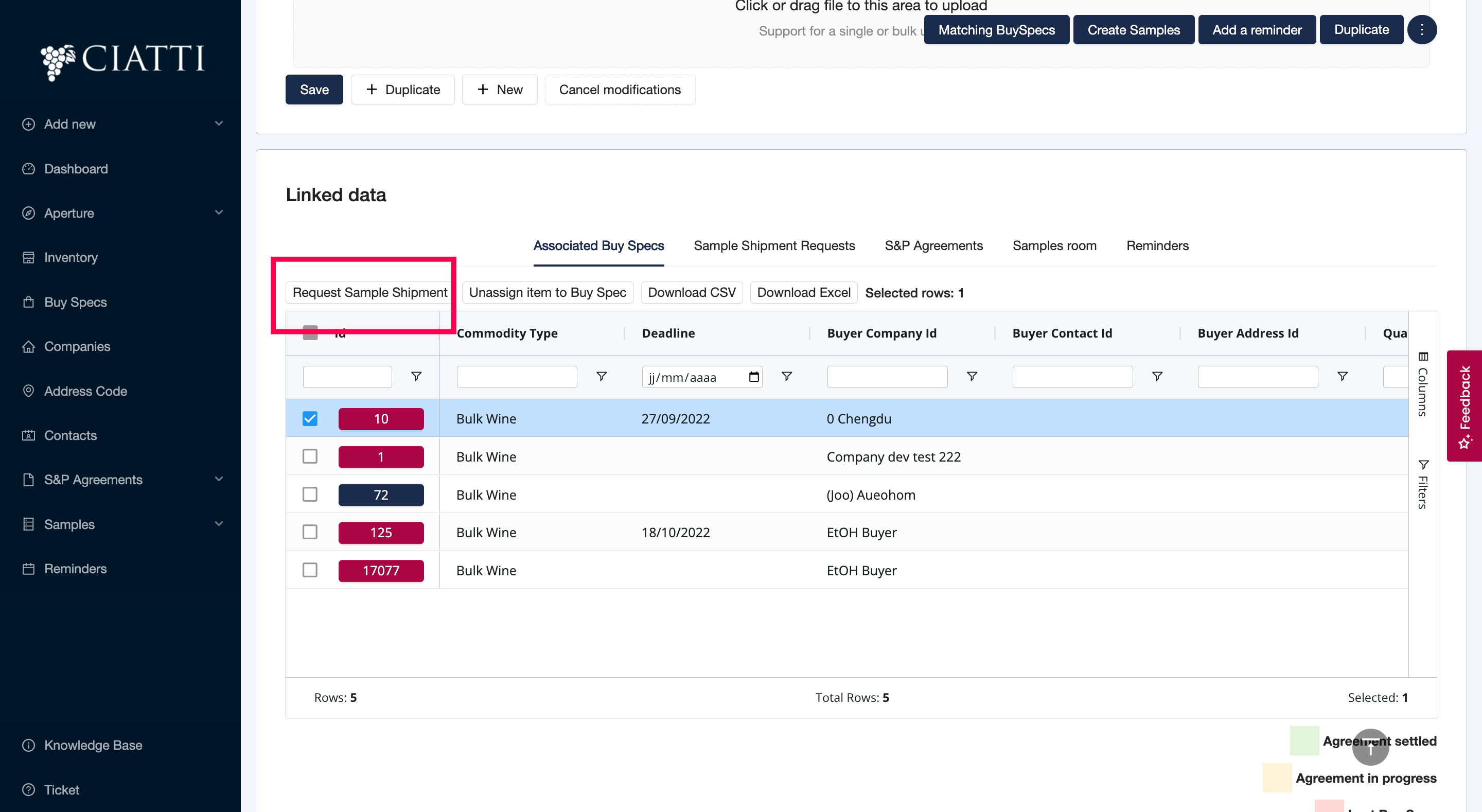
- You click on the Item that you’ve previously matched with a Buy Spec and in the Item details you go to the bottom of the Menu and choose ‘Associated Buy Specs’.
- You match a new item (or buy spec) and then Request a sample shipment.

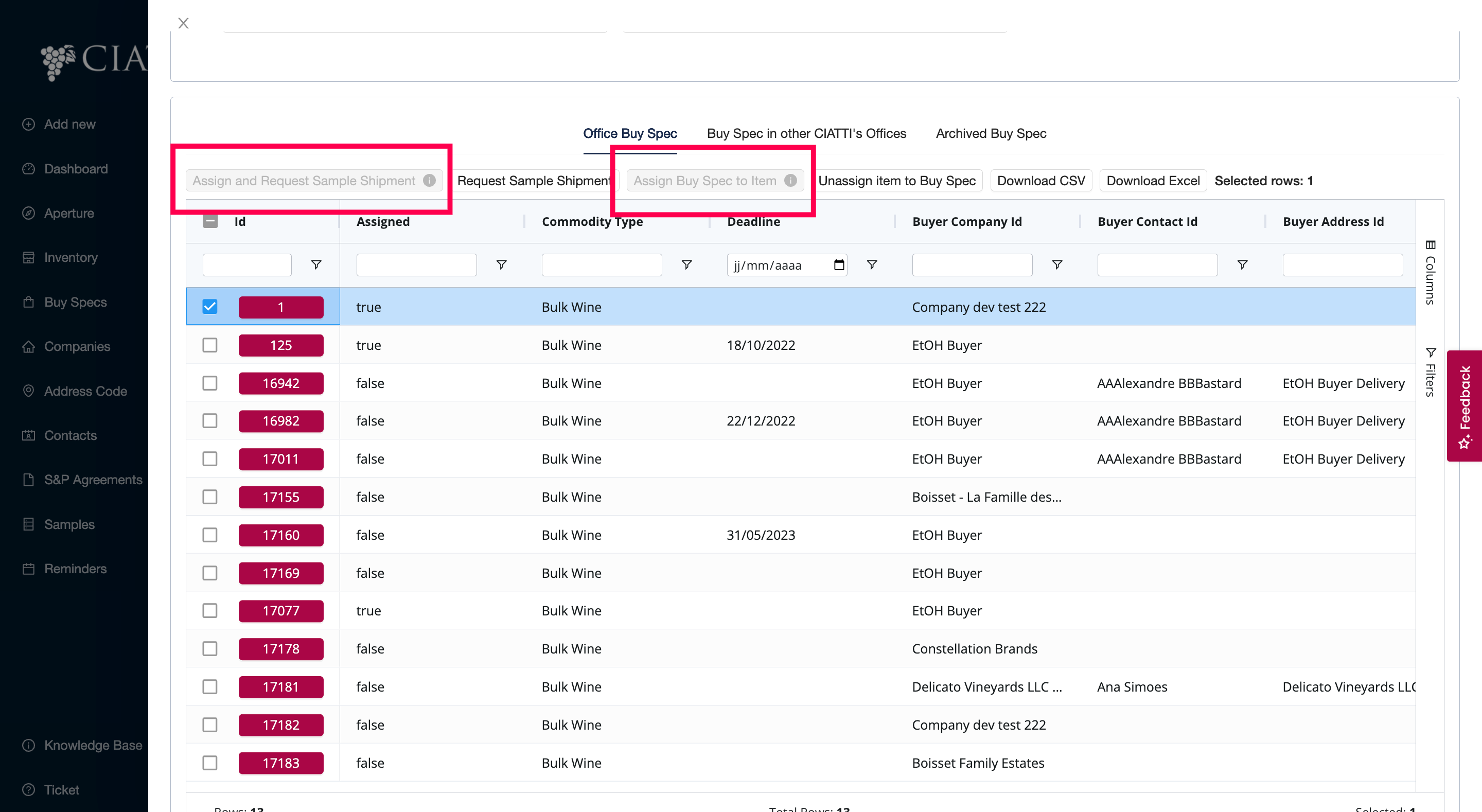
It is possible to only:
- Request Sample Shipment
- Assign Buy Spec (without requesting any shipment).
If the item was already assigned, you will not be able to assign again the same item, so the button will be disabled.
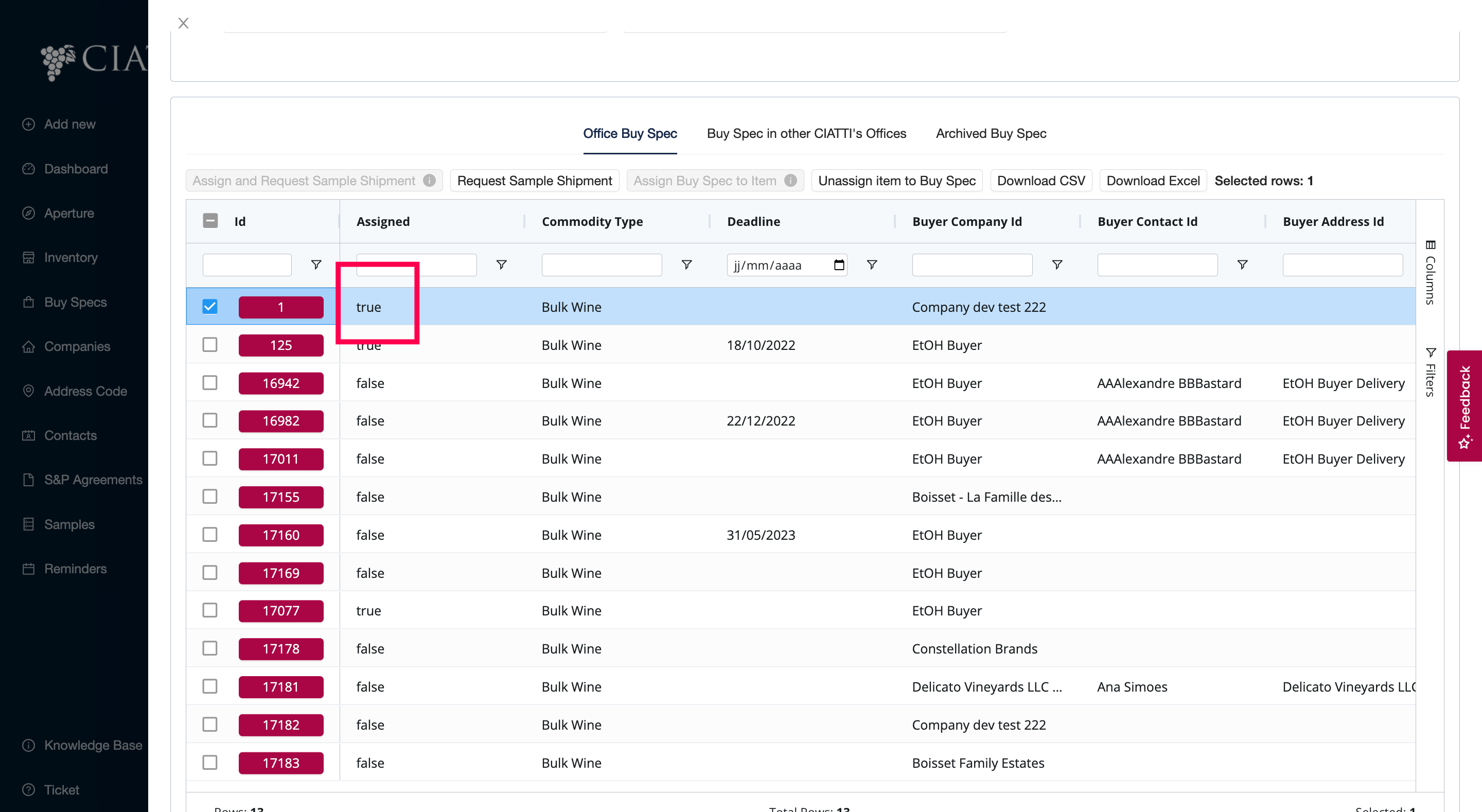
You can also checked if the Buy Spec was matched if it says Assigned = True
Was this article helpful?
That’s Great!
Thank you for your feedback
Sorry! We couldn't be helpful
Thank you for your feedback
Feedback sent
We appreciate your effort and will try to fix the article