Aperture lets you quickly search existing Items or Buy specs using multiple search criteria. And so you find the Item or the Buy Spec that best corresponds with your search.
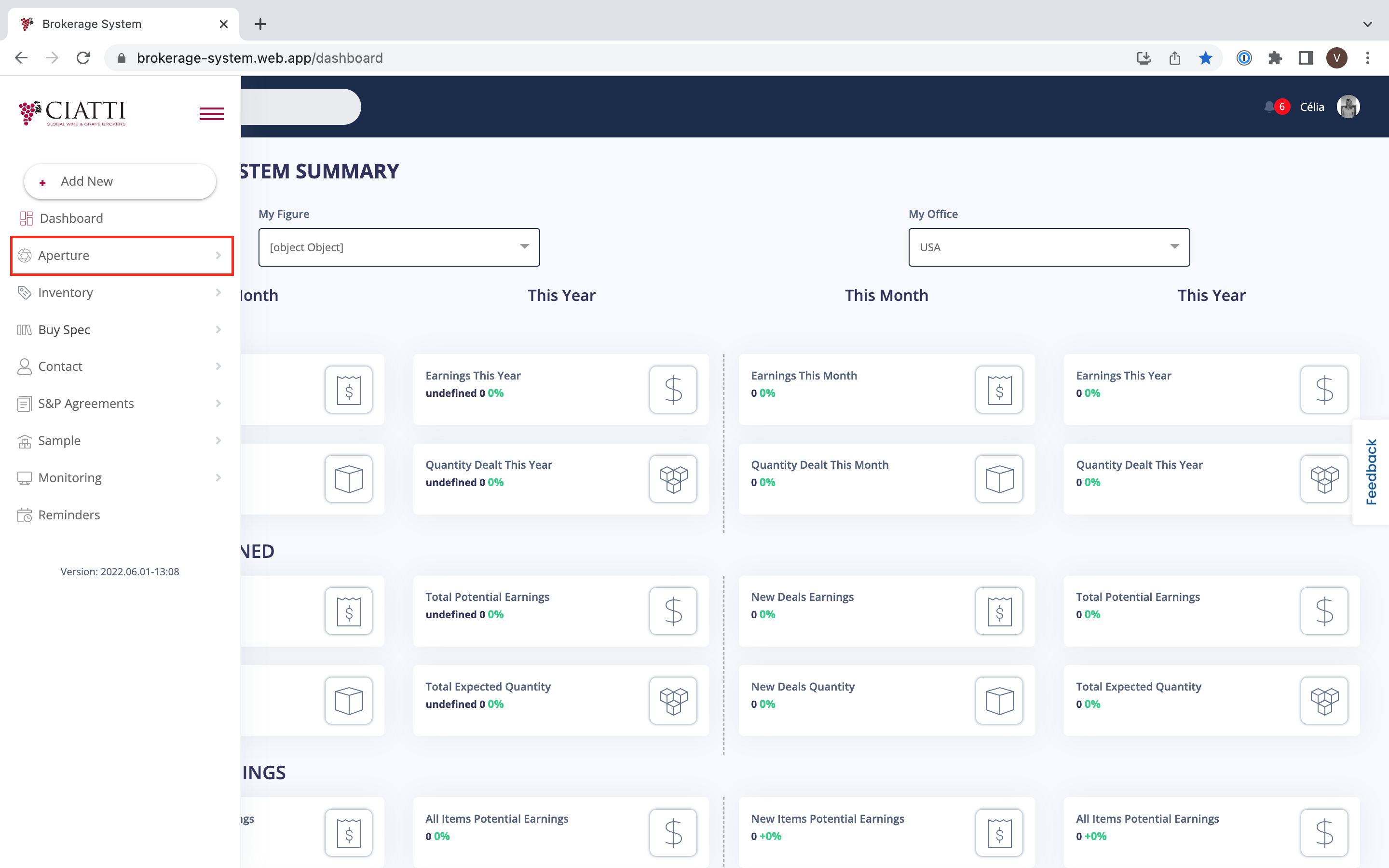
If you want to easily find the information about a certain Item or a Buy Spec, you need to choose the menu on the left of your Dashboard and press 'Aperture'.
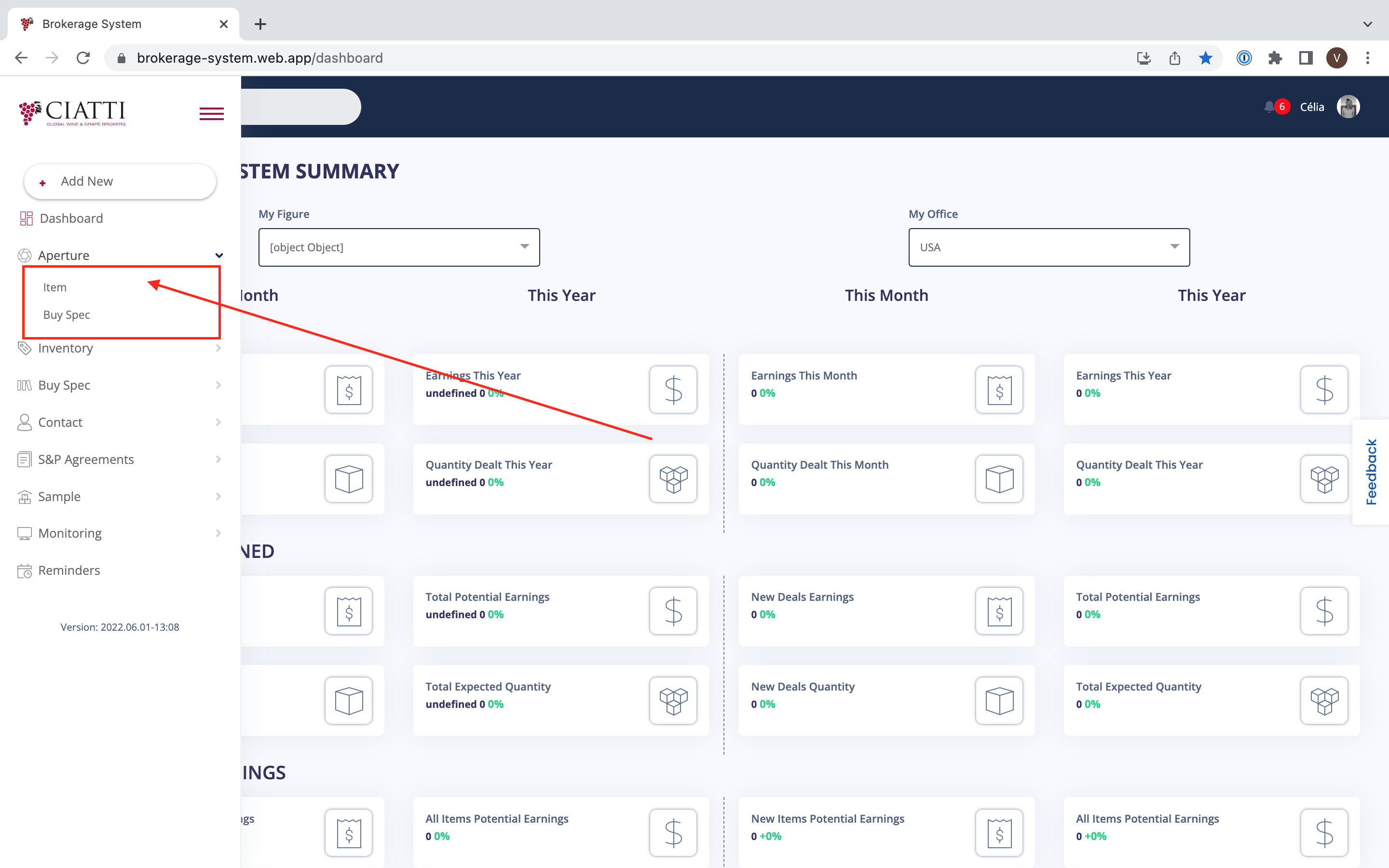
Then choose between Item and Buy Spec in the additional menu that appears.
Item is a product a customer is selling.
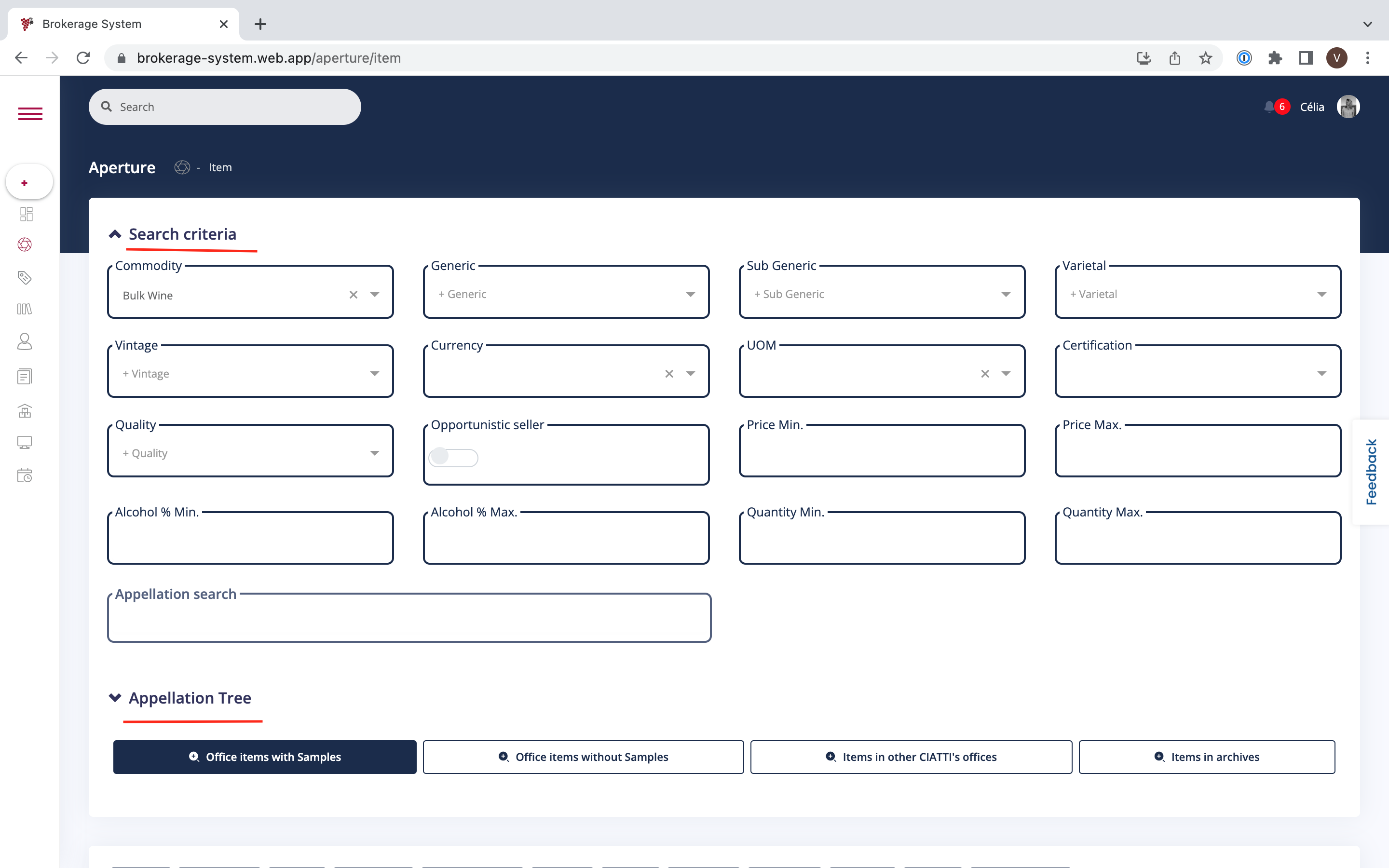
If you want to search for an existing Item in your software, you need to press the button 'Item'.
Then :
1/ You enter your different search criteria in “Search criteria”
2/ You indicate the appellations you are looking for either :
- clicking and searching with “Appellation search”
- by completing the second part “Appellation Tree” with more details
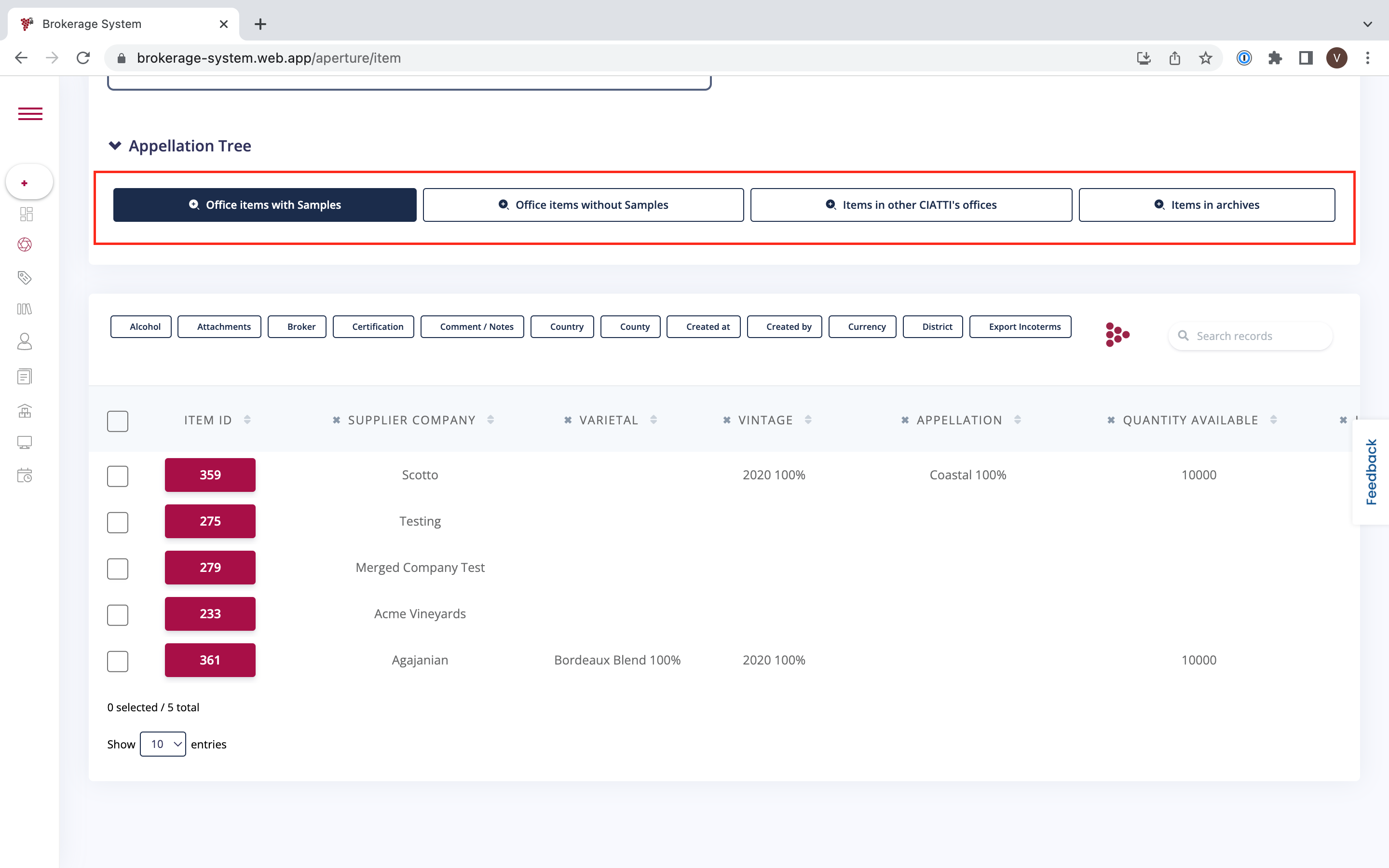
You can search for :
- Office items with Samples : display your own office customer’s Items, and you have samples in stock.
- Office items without Samples : display your own office customer’s Items, but you do not have samples in stock.
- Items in other CIATTI’s offices
- Items in archives
Buy Spec is a product a customer is looking to buy.
If you want to search for existing Buy Specs in your software, you need to press the button 'Buy Spec'.
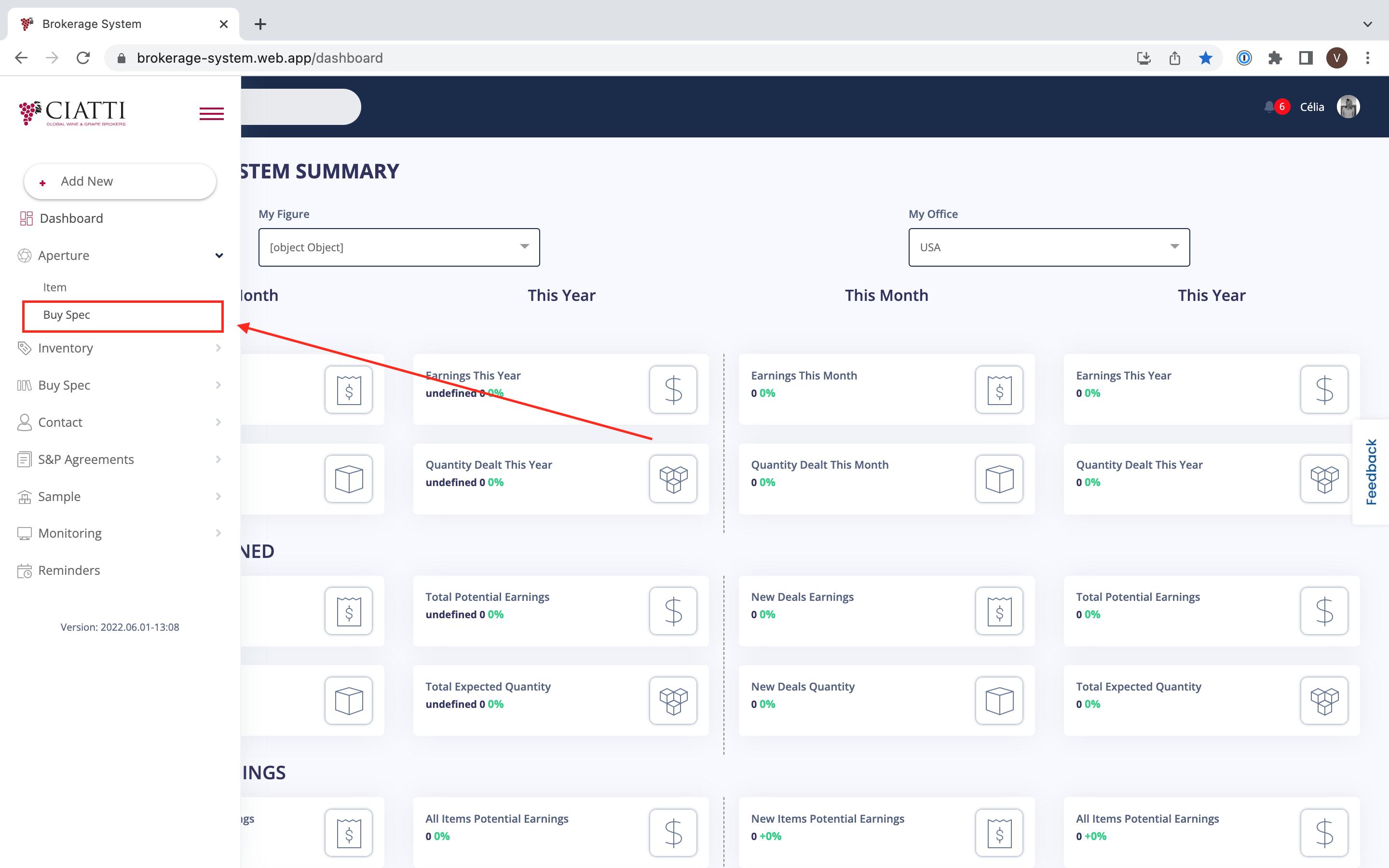
Then :
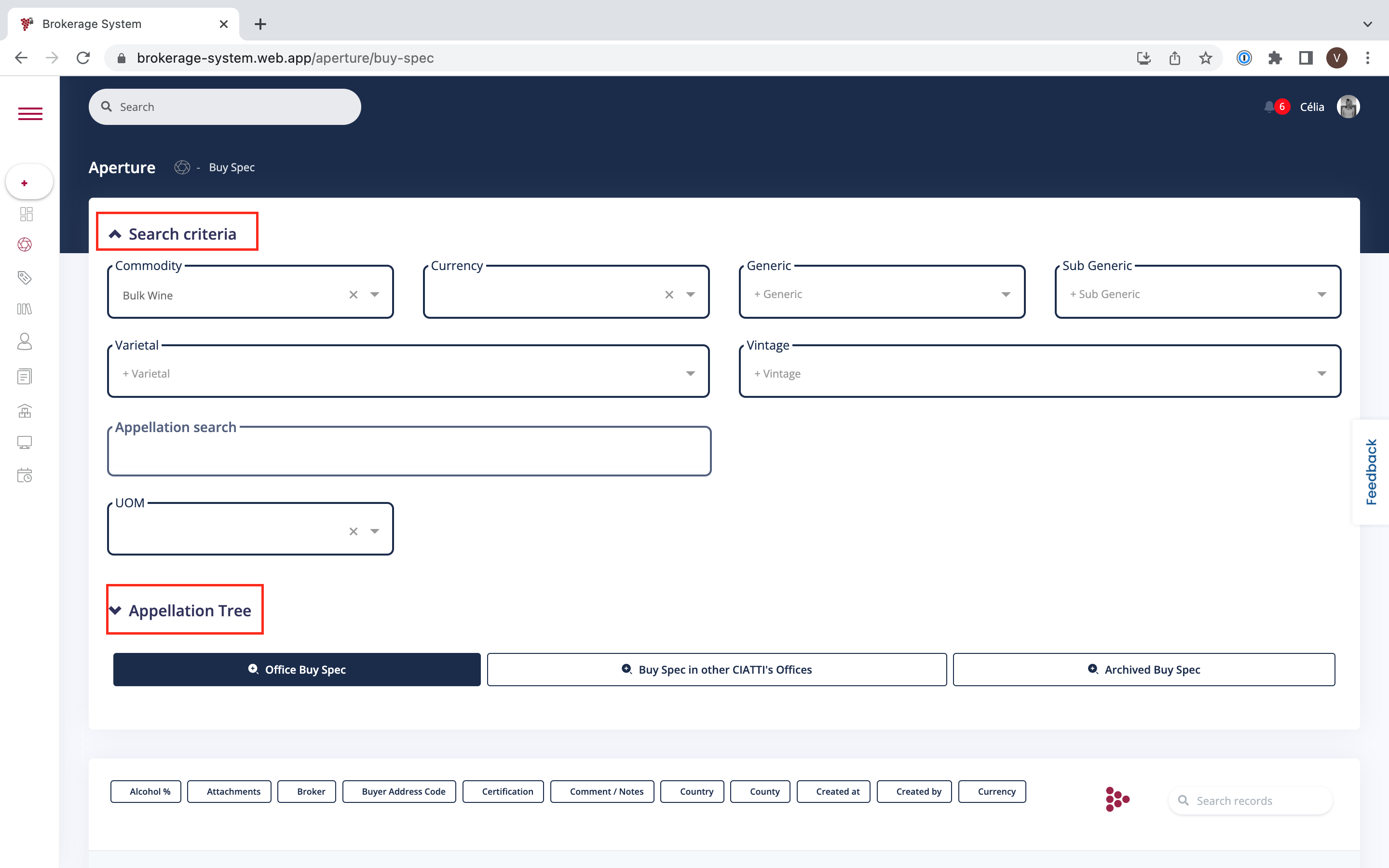
1/ You enter your different search criteria in “Search criteria”
2/ You indicate the appellations you are looking for either :
- clicking and searching with “Appellation search”
- by completing the second part “Appellation Tree” with more details
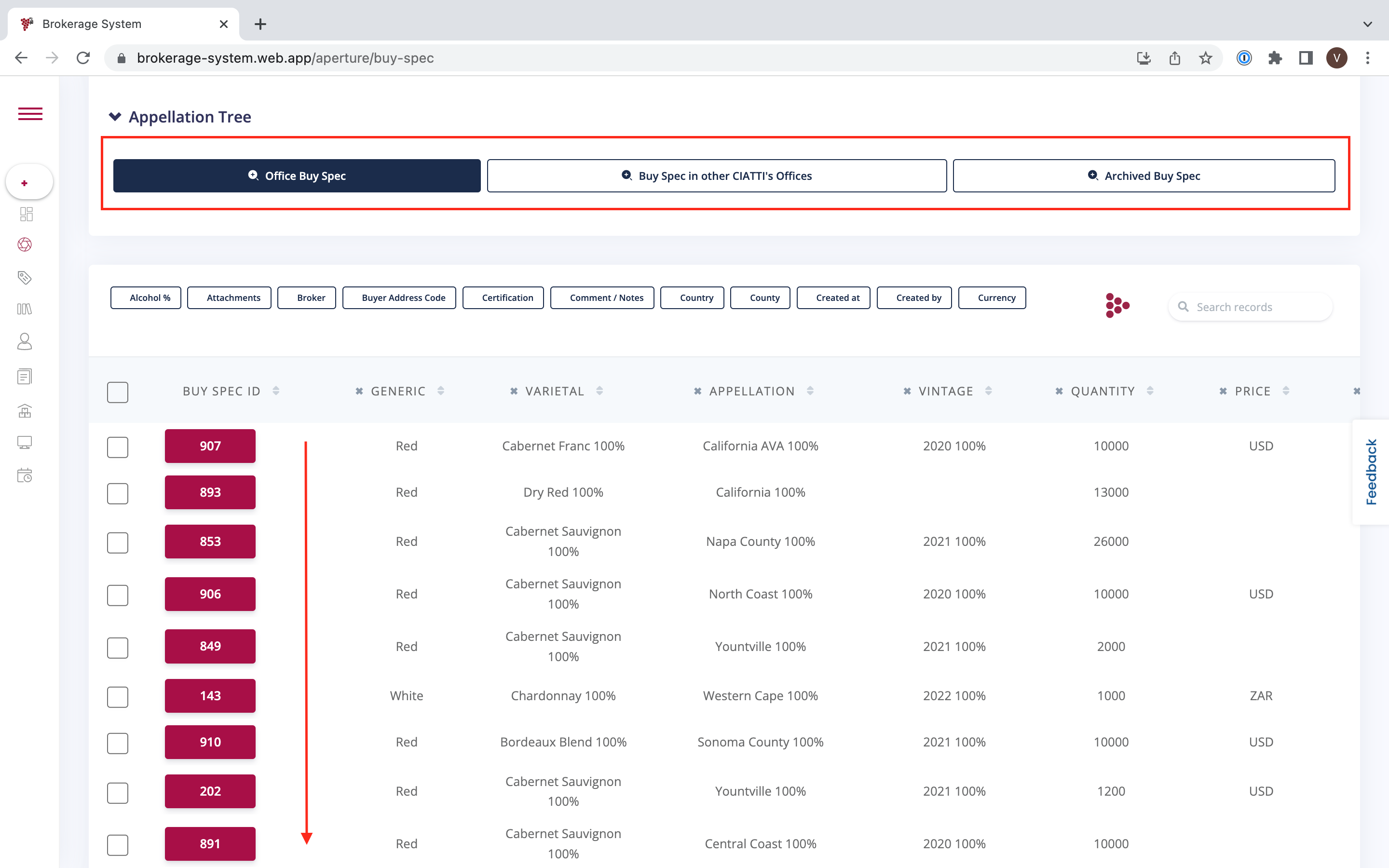
You can search :
- Office Buy Spec
- Buy Spec in other CIATTI’s Offices
- Archived Buy Spec
Was this article helpful?
That’s Great!
Thank you for your feedback
Sorry! We couldn't be helpful
Thank you for your feedback
Feedback sent
We appreciate your effort and will try to fix the article