You can display the details of every Sample.
In order to do so, you need to go to the menu on the left of your 'Dashboard' and choose ‘Sample’.
Samples Menu allows you to access the Sample Room and access to the samples in the Sample Room.
Sample Room : inventory of all samples
Sample Replenishment : inventory of all samples to replenish
In order to see the list of all samples, you need to enter the Sample Room.
You can display all the Samples details from this tab by clicking on the Sample ID.
It is possible to find the following information about every Contact :
- Sample ID
- Shelf
- The date of creation
- The person who created the sample
- Office
- Sampling Date
- etc
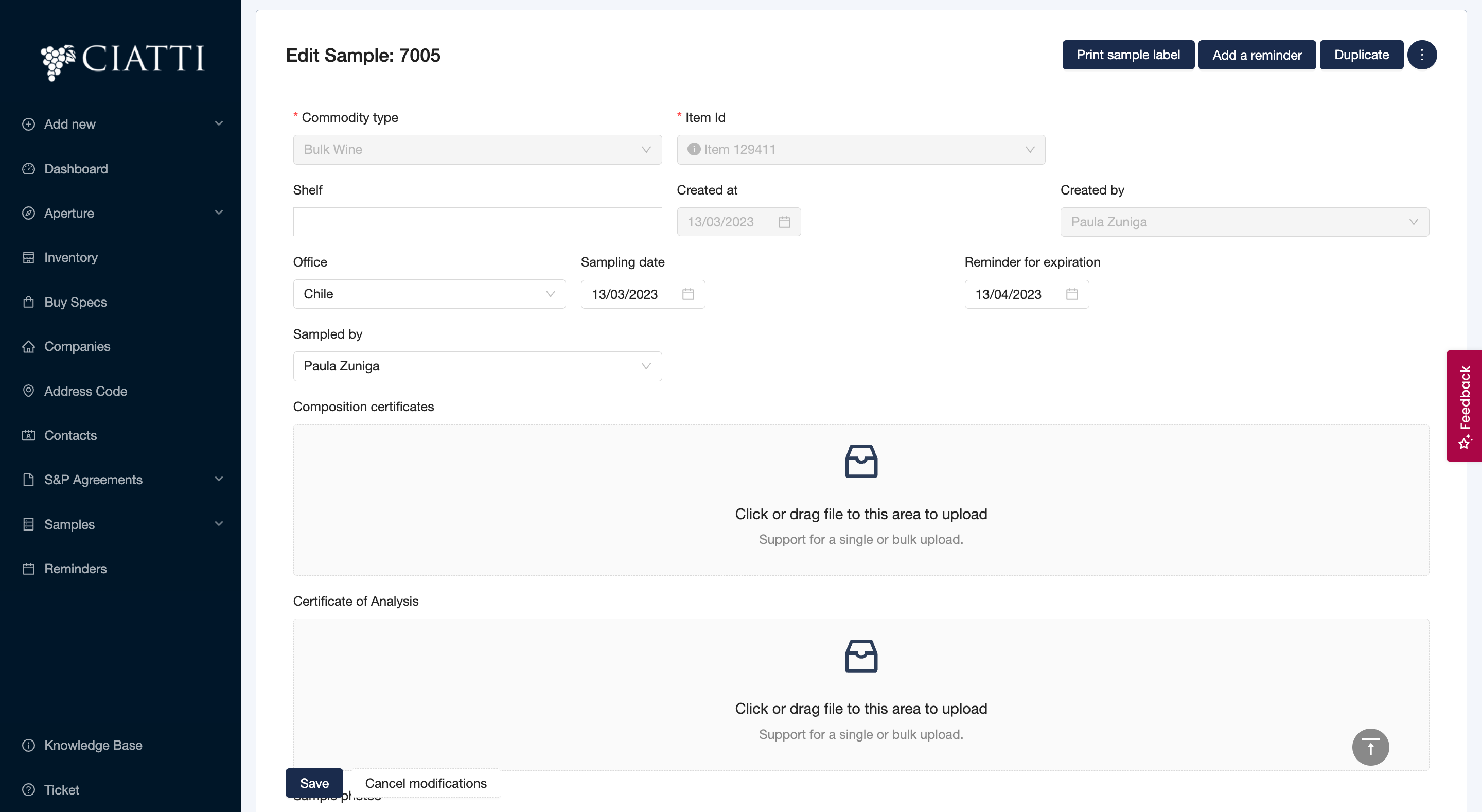
It is also possible to see Comments / Notes and Attached, check the Item Summary as well as to set a Reminder, edit the information about the Sample, renew it or/and see the Sample Label.
Was this article helpful?
That’s Great!
Thank you for your feedback
Sorry! We couldn't be helpful
Thank you for your feedback
Feedback sent
We appreciate your effort and will try to fix the article