If the Broker wants to know if he has some potential buyers (Buy Specs) looking for an Item similar to what his client is selling, he can either go to Aperture or to Buy Spec Menu to check.
PART 1
The Broker can choose to start from Aperture menu. In order to do so, he needs to go to the left of his Dashboard and choose 'Aperture'.
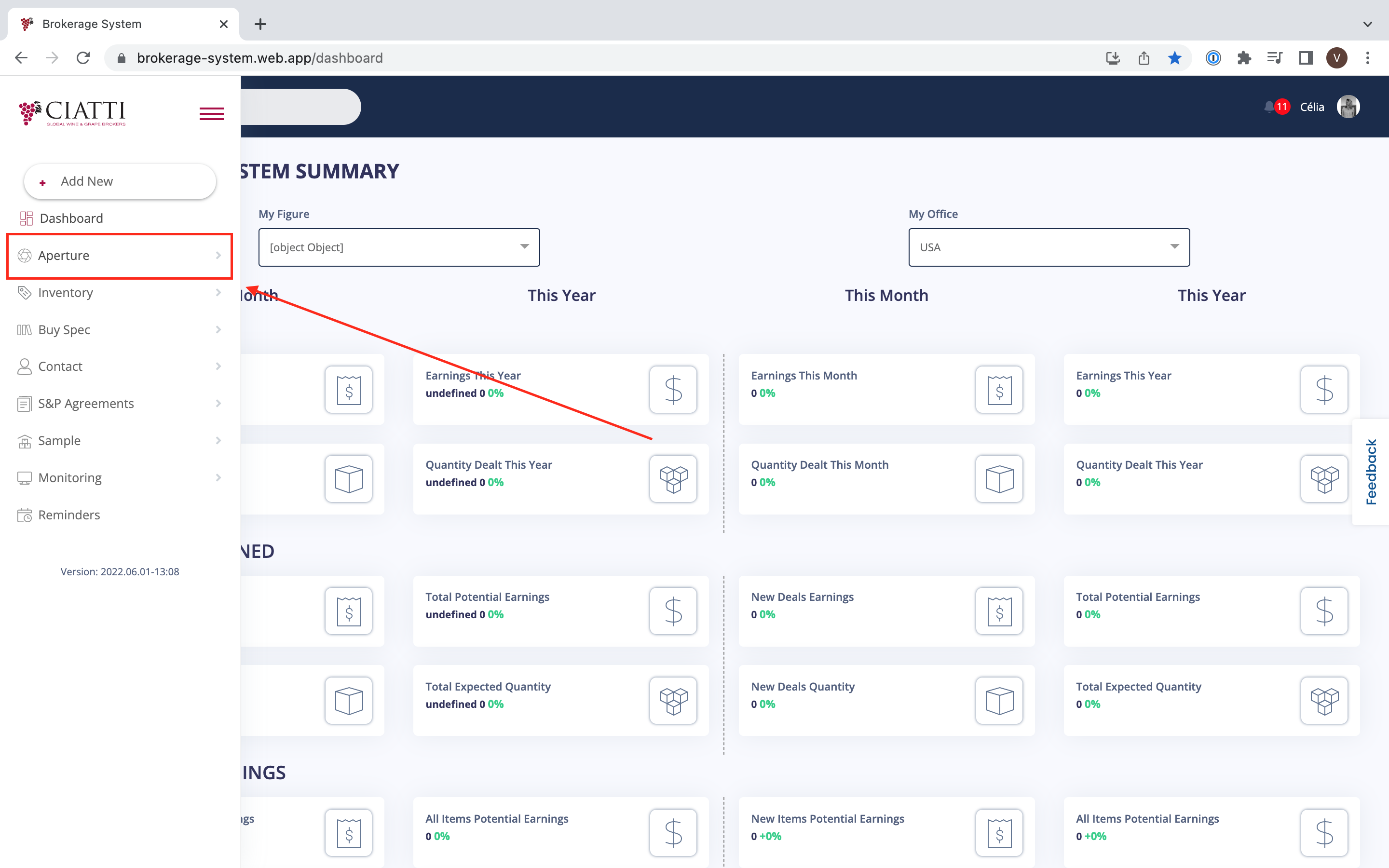
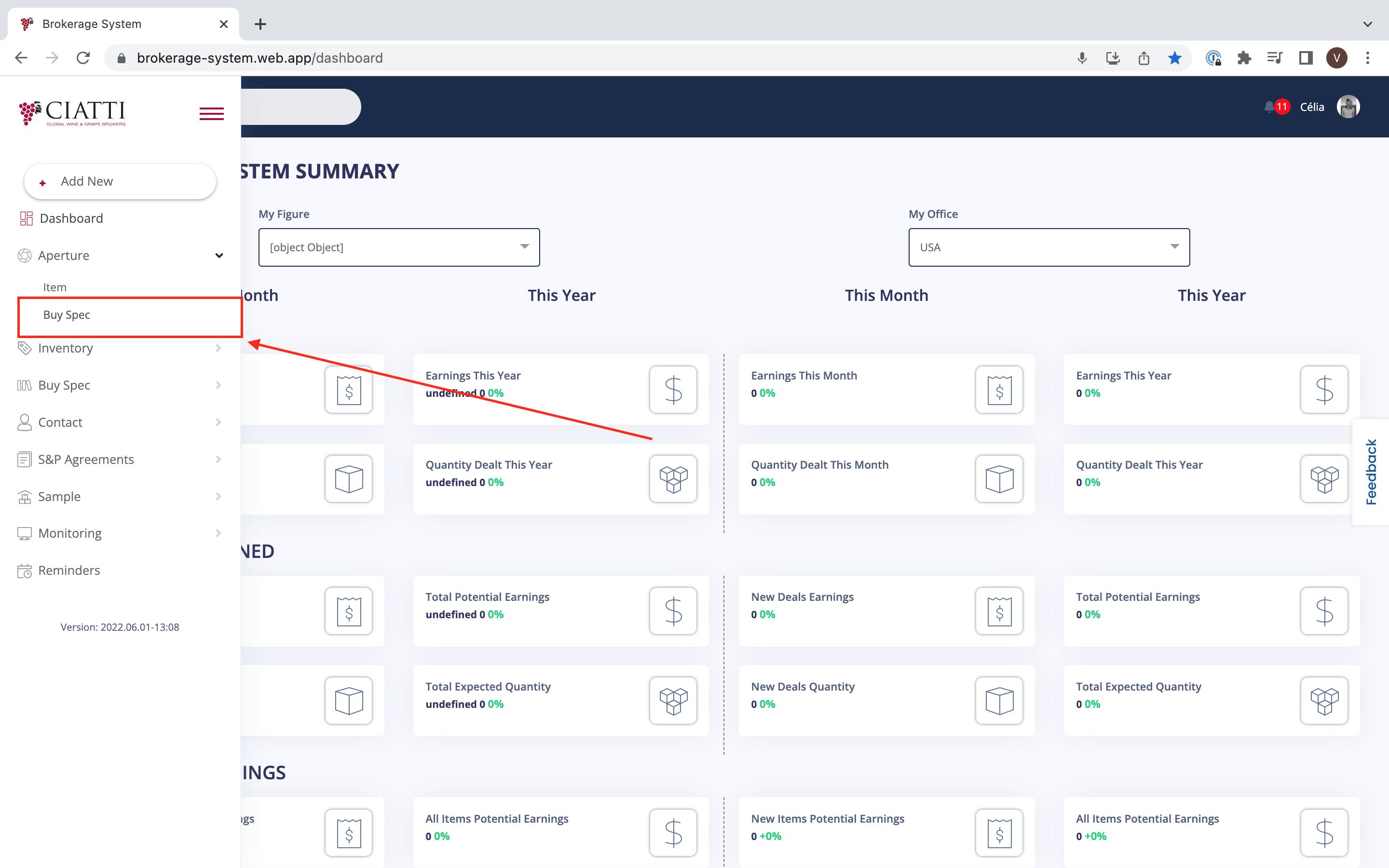
If he's looking for Buy Specs, he needs to press 'Buy Spec'.
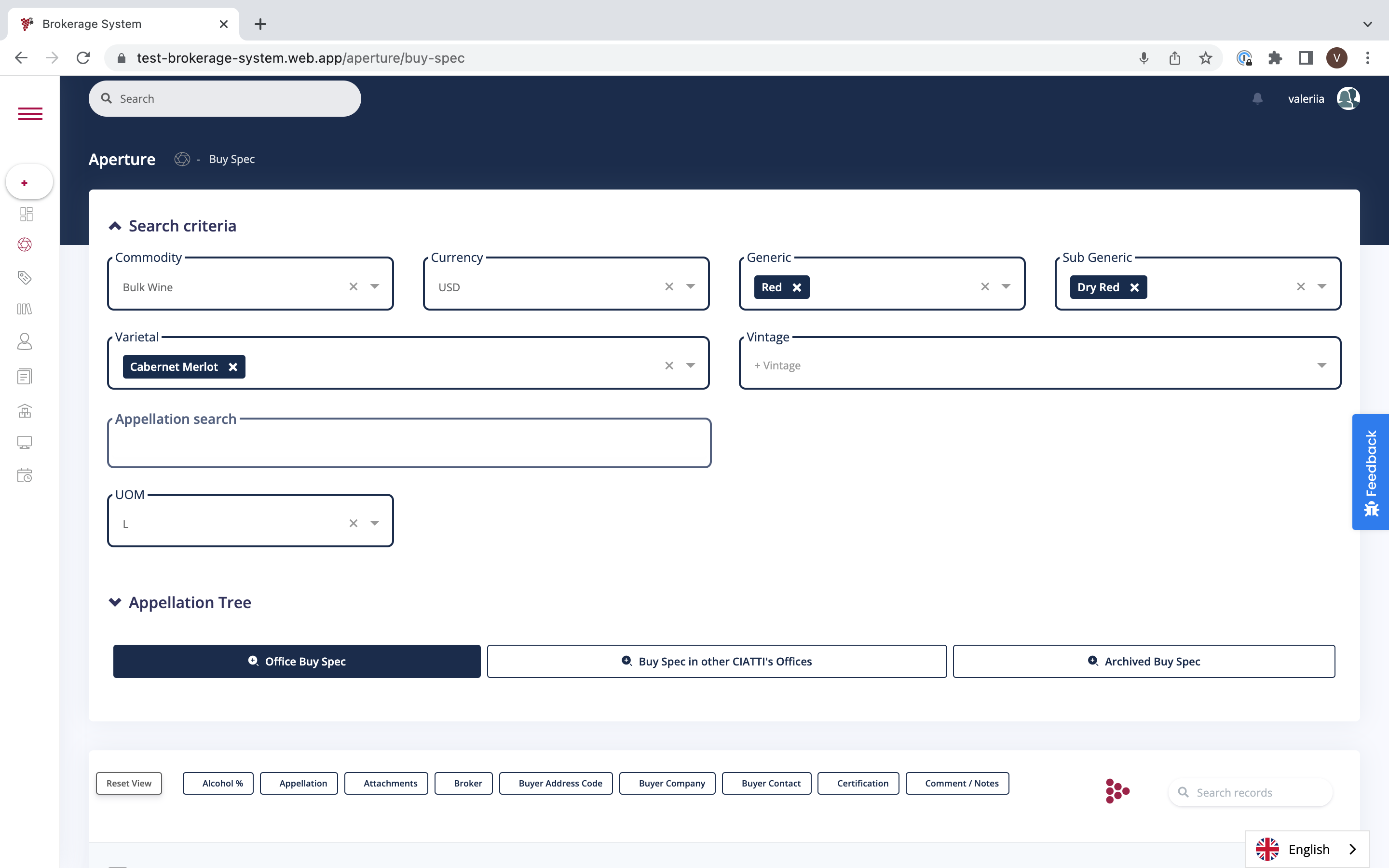
The Broker has to enter the information about the Buy Spec his client is looking for. As the Broker narrows his search, the corresponding results will show up in the menu at the bottom of the page.
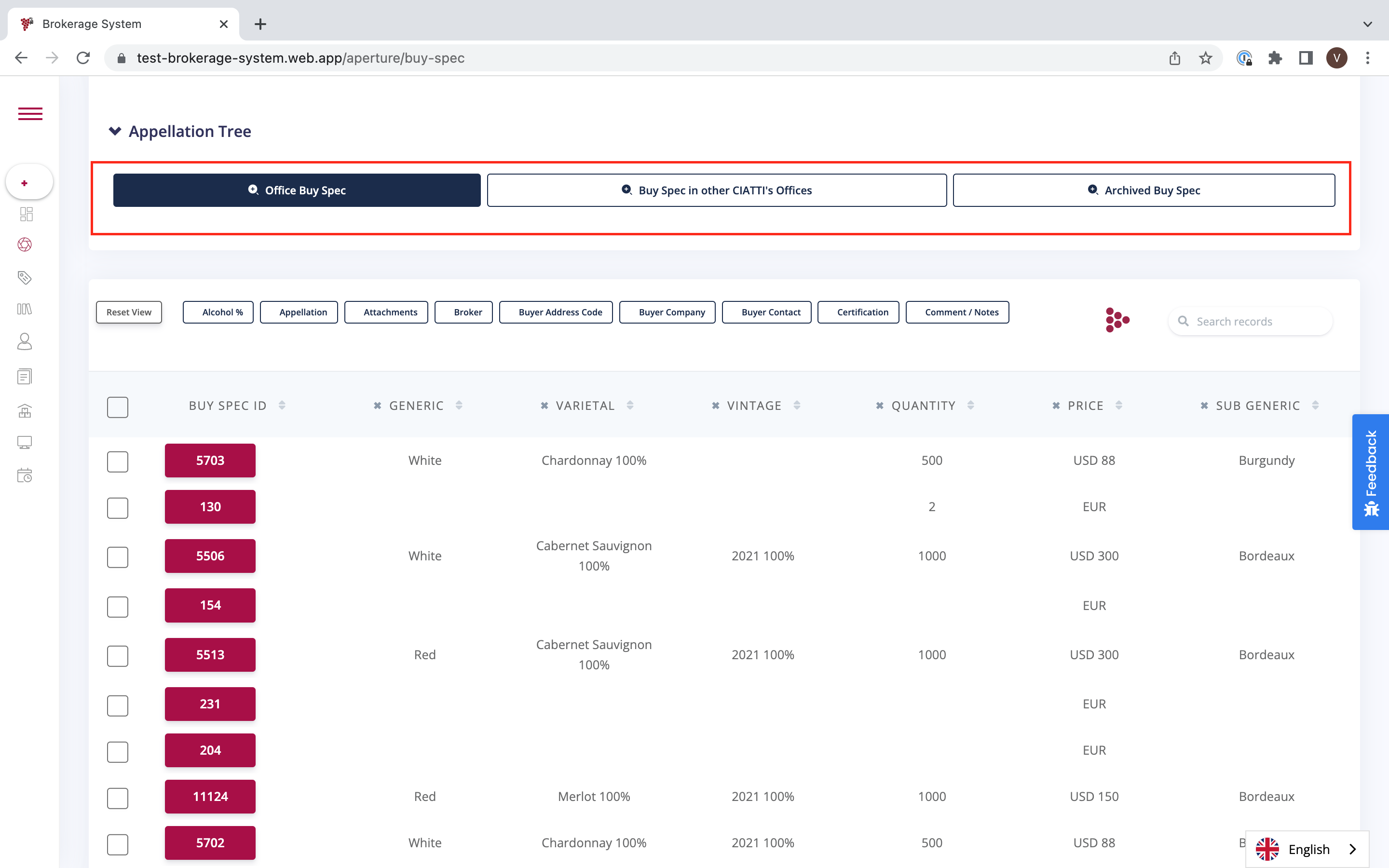
The Broker can filter the displayed Buy Specs and choose between :
- 'Office Buy Spec' - this means that these Buy Specs are available;
- 'Buy Spec in other Ciatti's Offices' - these Buy Specs are available in Ciatti's offices in a different country;
- 'Buy Spec in archives' - these Buy Specs are old contacts which the Broker can reuse.
PART 2
The Broker has two ways of looking for Buy Specs : through Aperture and through Buy Spec Menu.
The Broker can look for Buy Specs through the Buy Spec Menu by searching records or filtering the table.
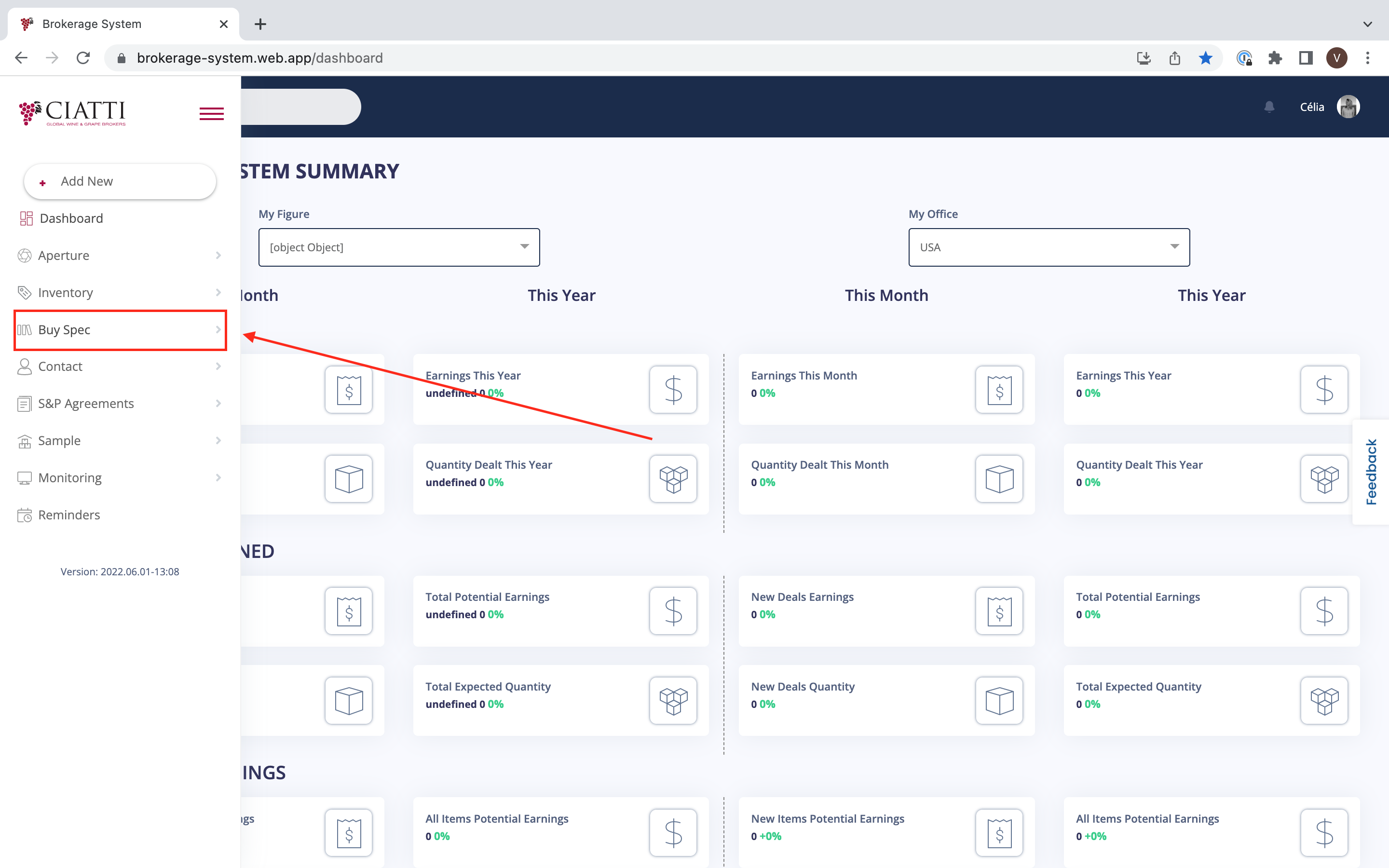
In order to do so, the Broker needs to choose the menu on the left of your Dashboard and press 'Buy Spec'.
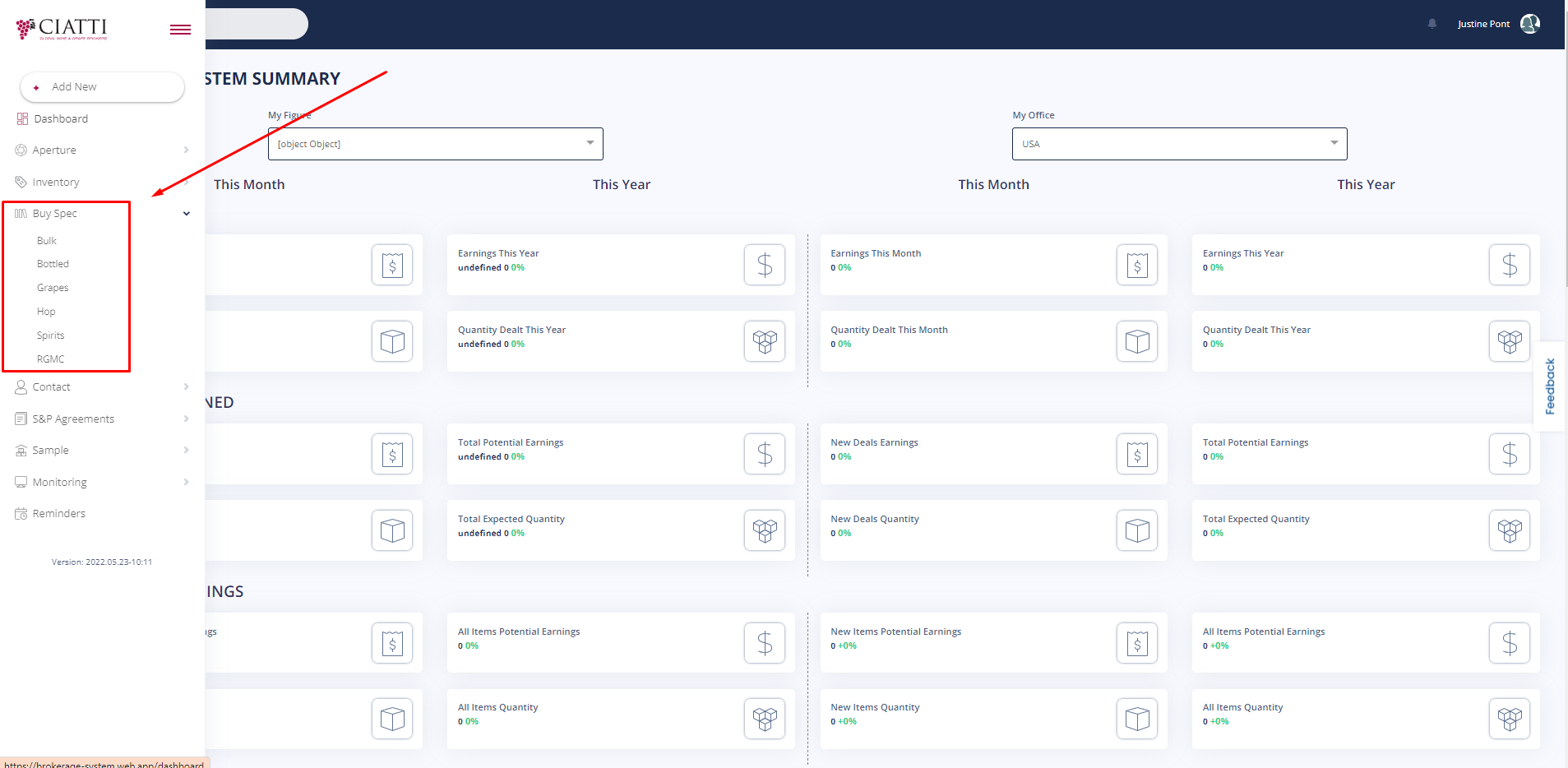
After that, in the additional menu that appears you need to choose one of the following options that contains Buy Specs. Buy Spec Menu lists all items according to different categories : Bulk, Bottled, Grapes, Hop, Spirits, RGMC.
Now that you have entered the Buy Spec Table, you can search for different records in the ‘Search records’ bar :
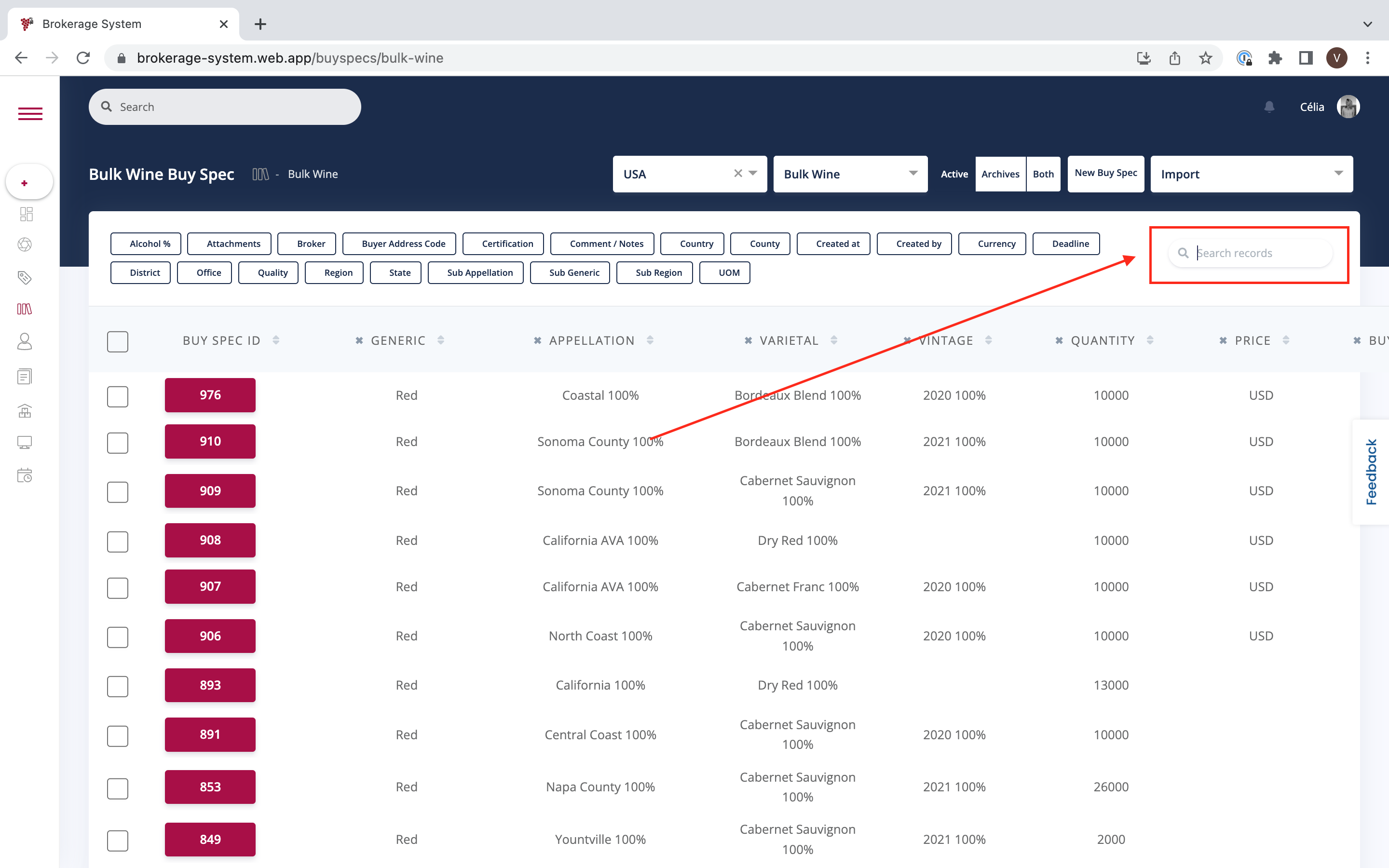
This feature allows you to find any information about any Buy Spec in seconds ! All you have to do is type the information you need, such as the name of the broker or a certain type of certification you're looking for. For example, in the Bulk Wine Inventory you search for the following information :
Buyer Company
Alcohol %
Appellation
Attachments
Broker
Buyer Address Code
Buyer Company
Certification
etc
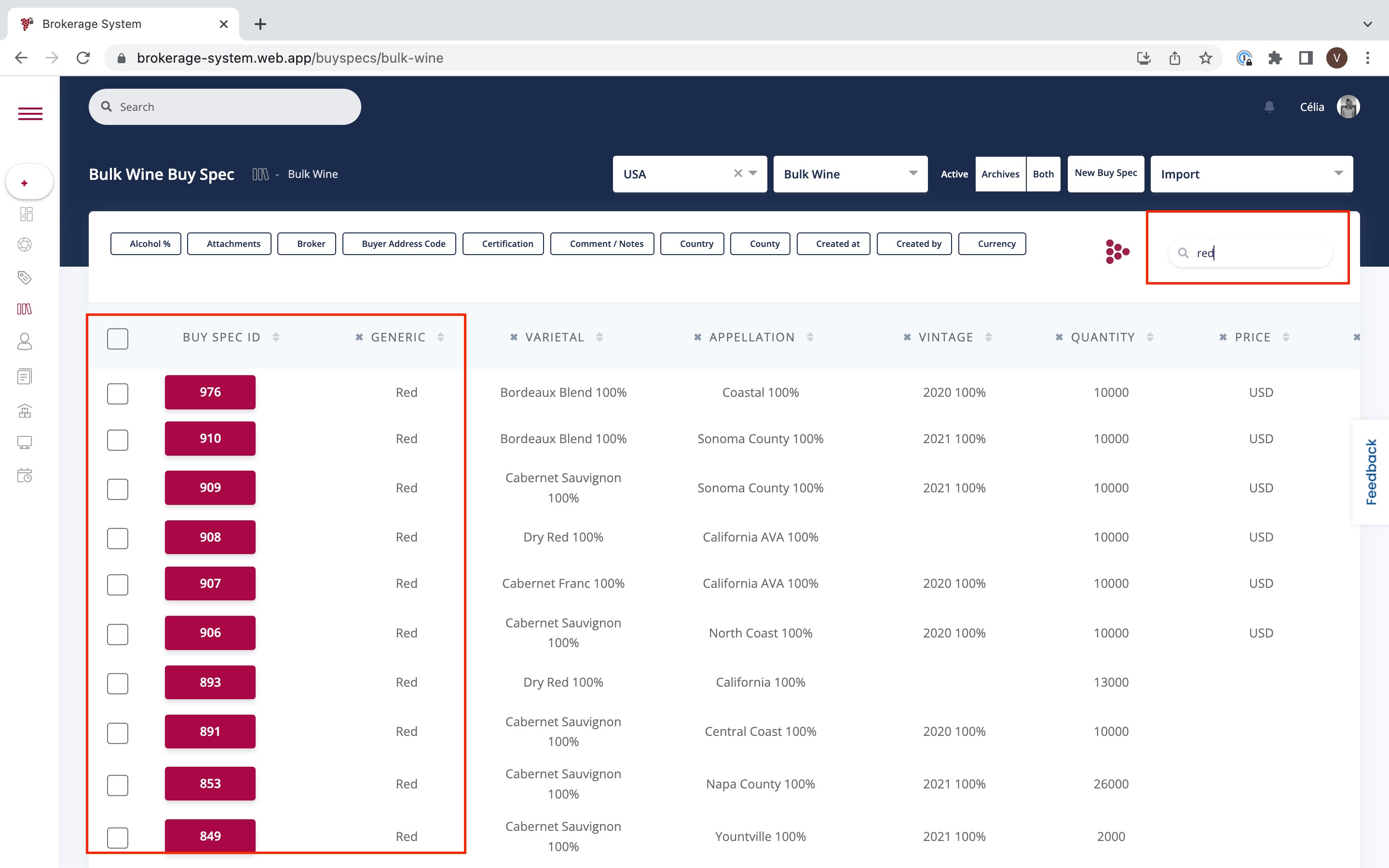
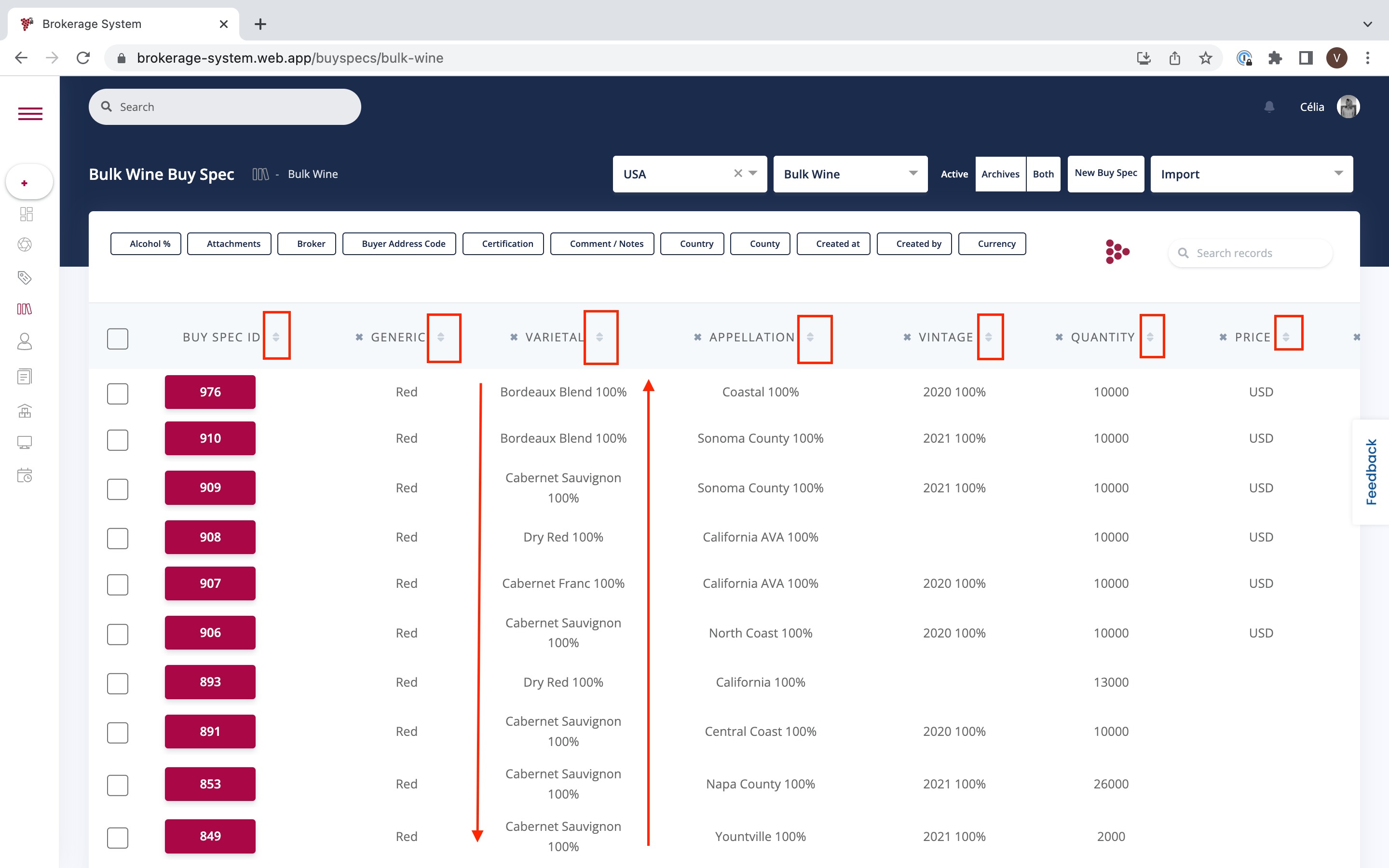
You can also filter and arrange the information in the Buy Spec Table. In order to do so, you have to press on the Up and Down Arrow symbol. This feature allows you to arrange the information in the columns in ascending or descending order.
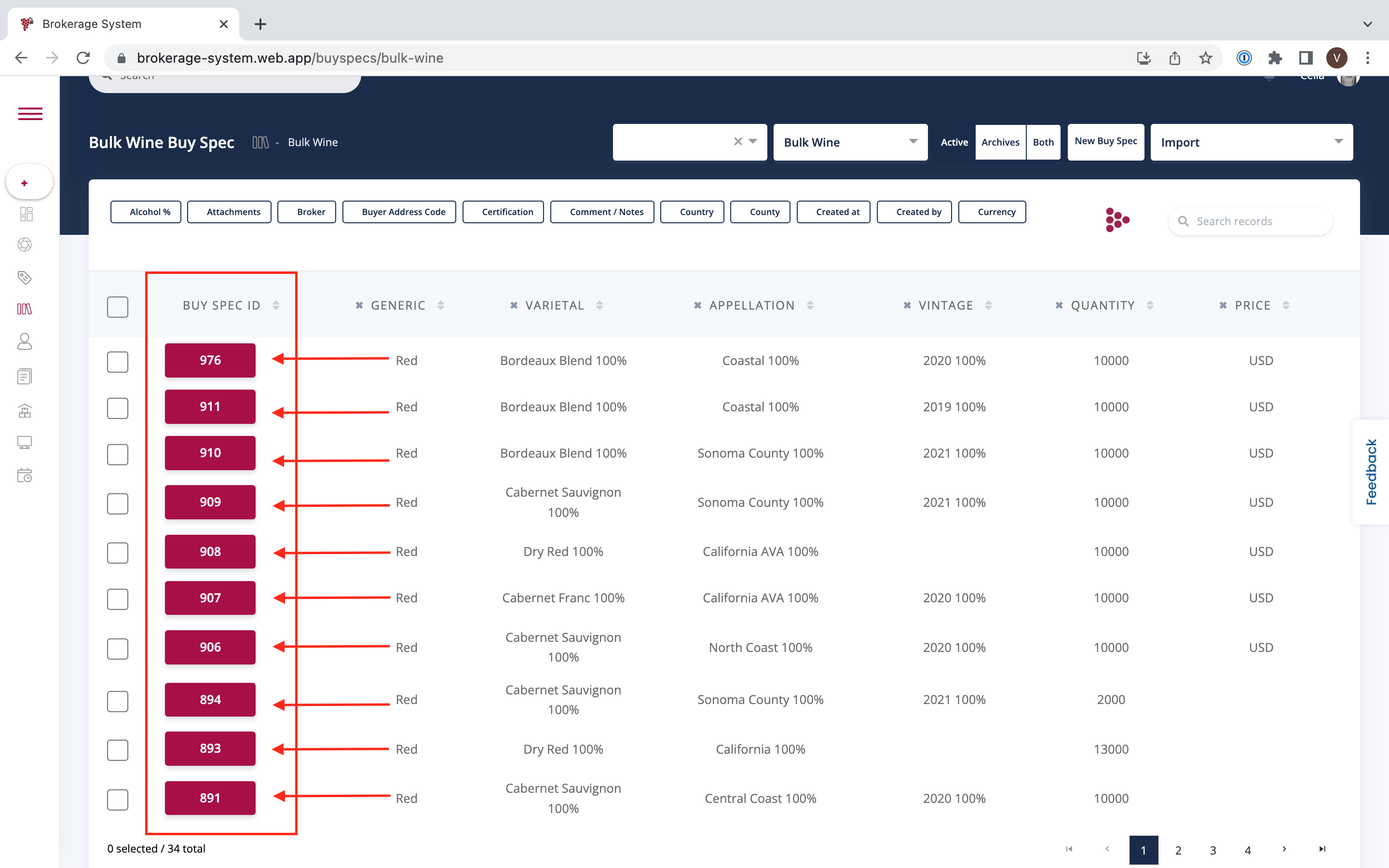
Once the Broker has found a potential Buy Spec, he can display the Buy Spec Details by clicking on the Buy Spec ID.
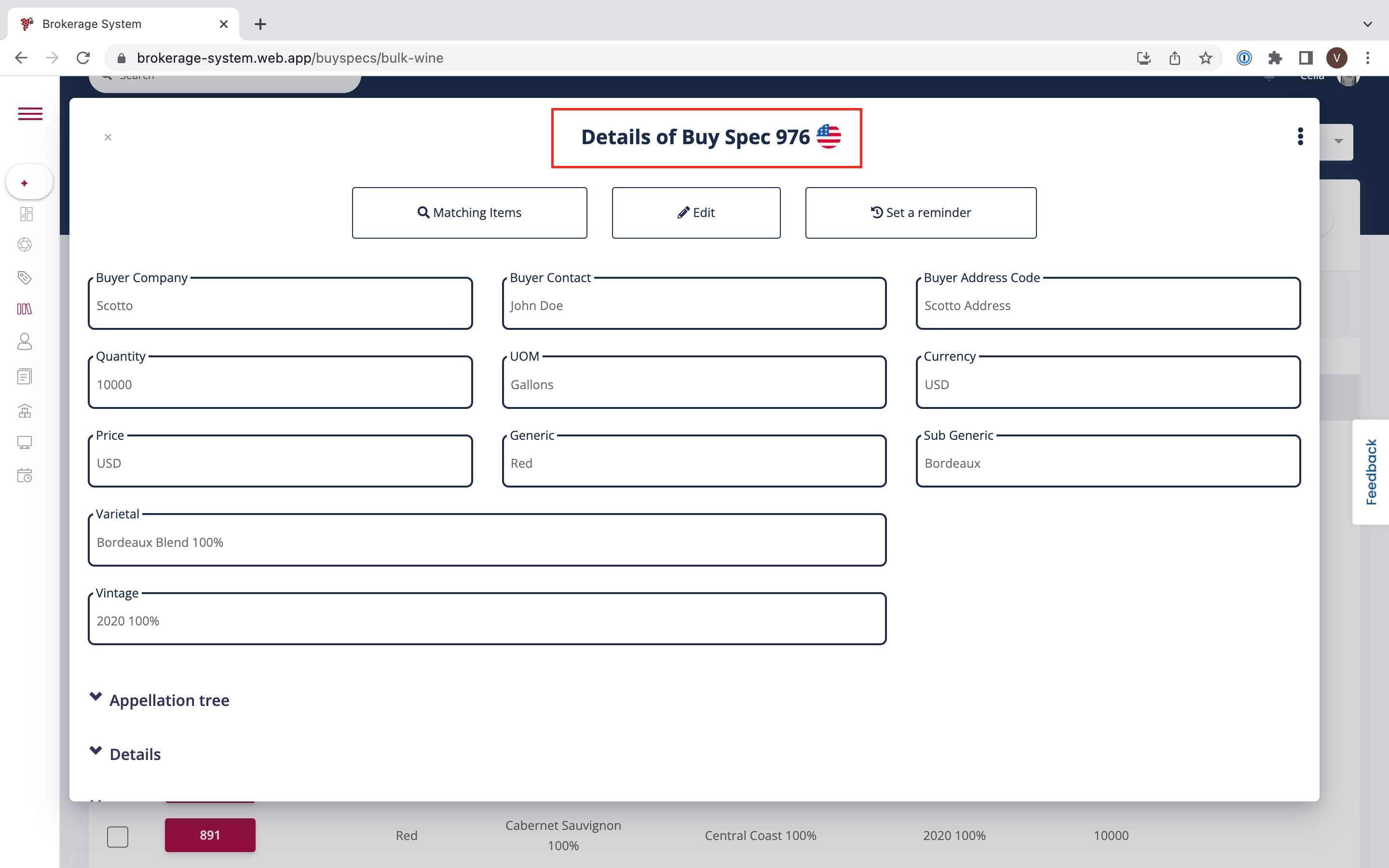
It is possible to find the following information about every Buy Spec :
- Buyer Company
- Buyer Contact
- Buyer Address Code
- Quantity
- Currency
- UOM
- etc
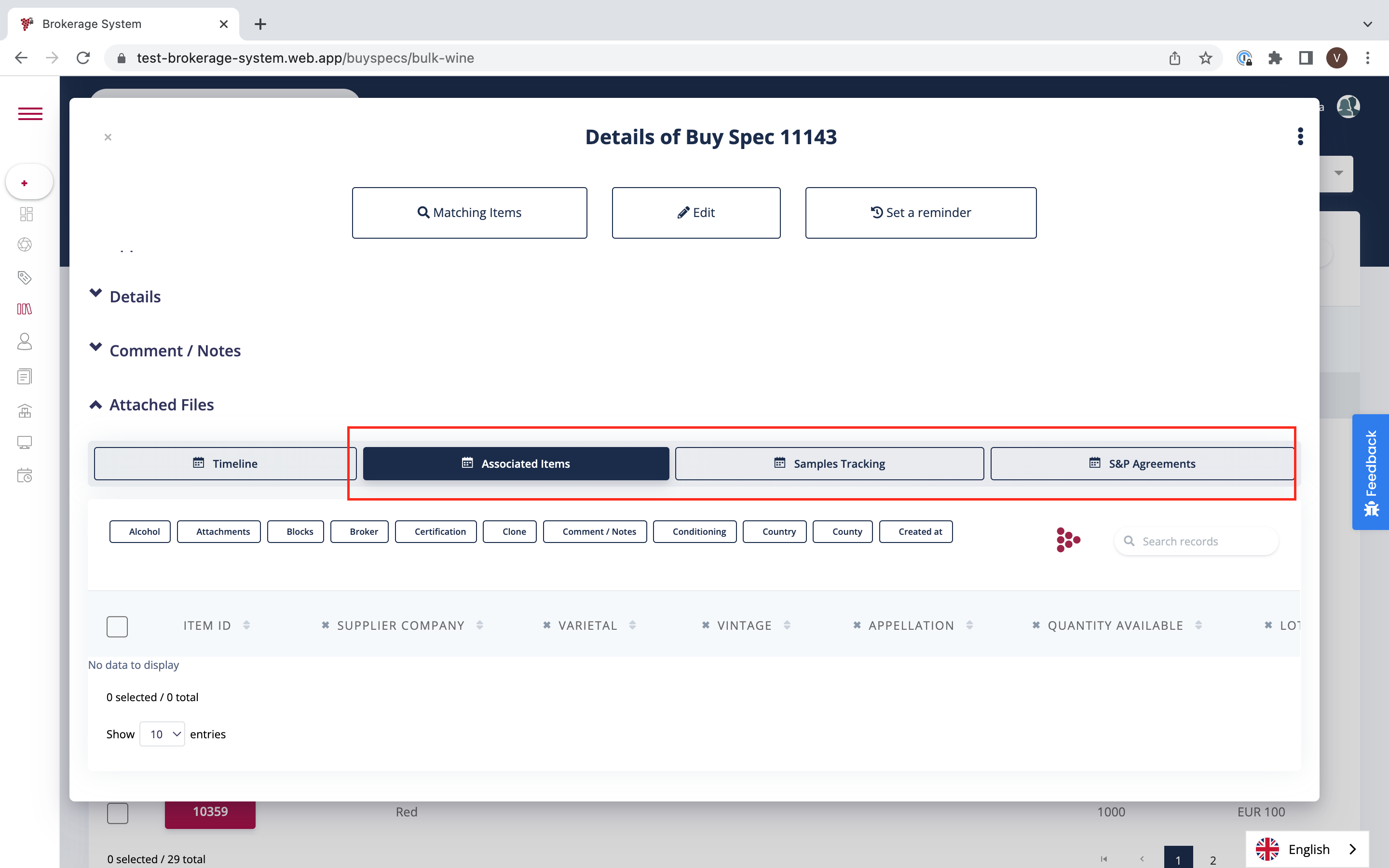
The Broker can go to the bottom of the page and see if the Buy Spec is linked to any Items, whether he had Samples sent to him or whether he's engaged in any S&P Agreements.
Was this article helpful?
That’s Great!
Thank you for your feedback
Sorry! We couldn't be helpful
Thank you for your feedback
Feedback sent
We appreciate your effort and will try to fix the article